Bigjpg AI Image Enlarger Explained - Free Online Upscaler, No Sign-Up
Bigjpg enlarges an image by inventing the pixels that were never there. Below is a free browser upscaler that does the same job Bigjpg does, so you can see what that looks like on your own file in about ten seconds.
tiled diffusion · rebuilds texture
Running Tile Upscaler in your browser. Want a bigger upload and a model you choose per image? →
Independent site — not affiliated with Bigjpg or bigjpg.com. Or enlarge it on a dedicated GPU →
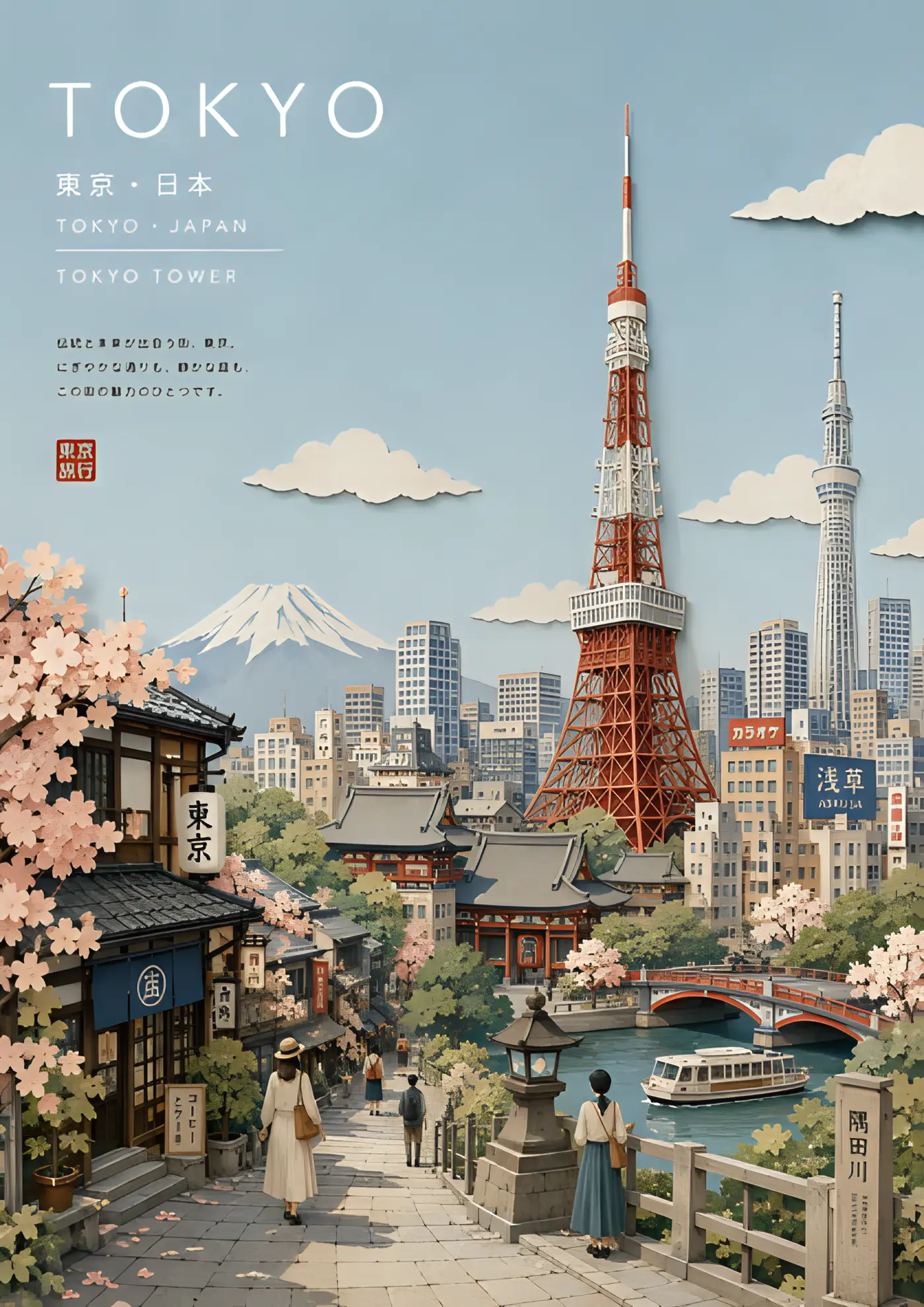
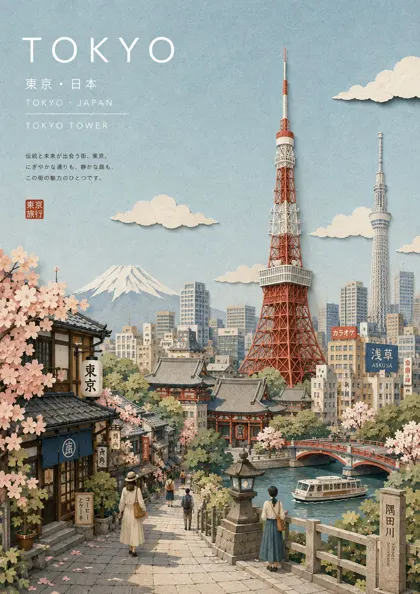
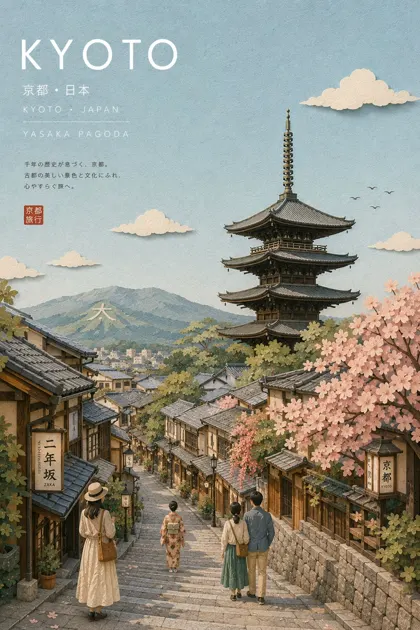
Drag the divider: same file, 420 pixels wide, enlarged 4x
Every one of these started as a 420-pixel-wide file and came back through an engine on this page. Look at the small type and the leaves — that is where the difference lives.
 420px originalenlarged 4x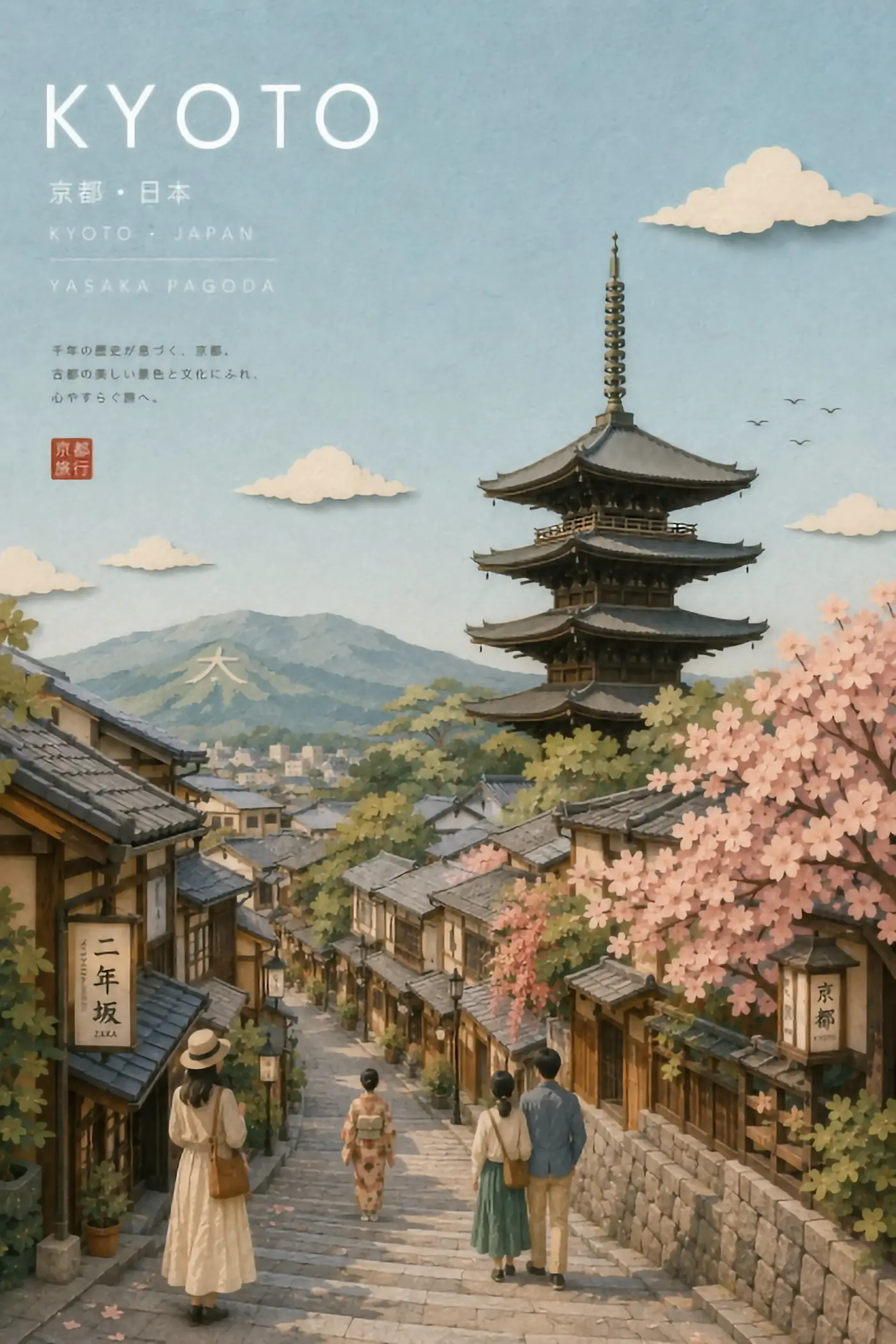
 420px originalenlarged 4x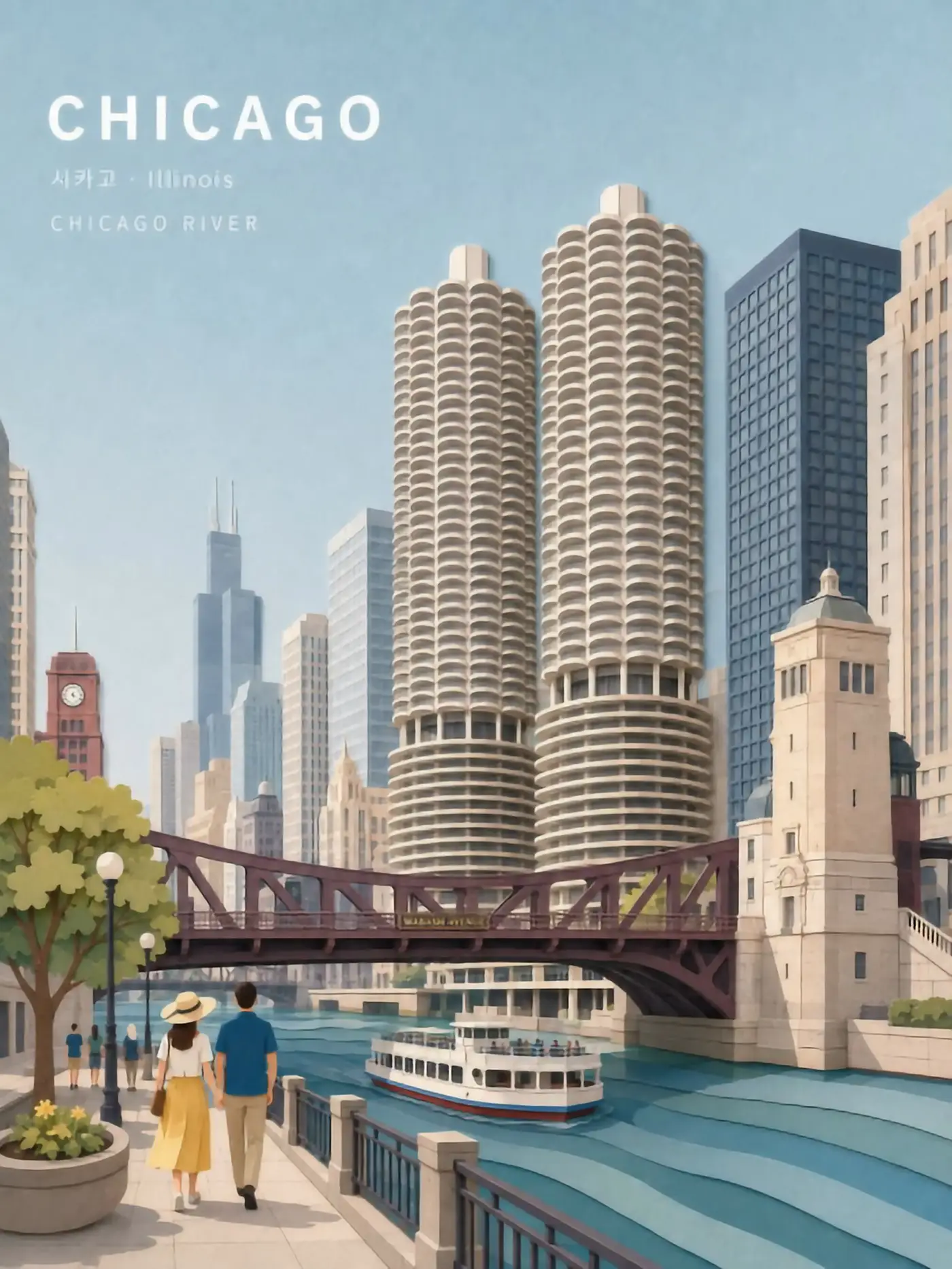
 420px originalenlarged 4x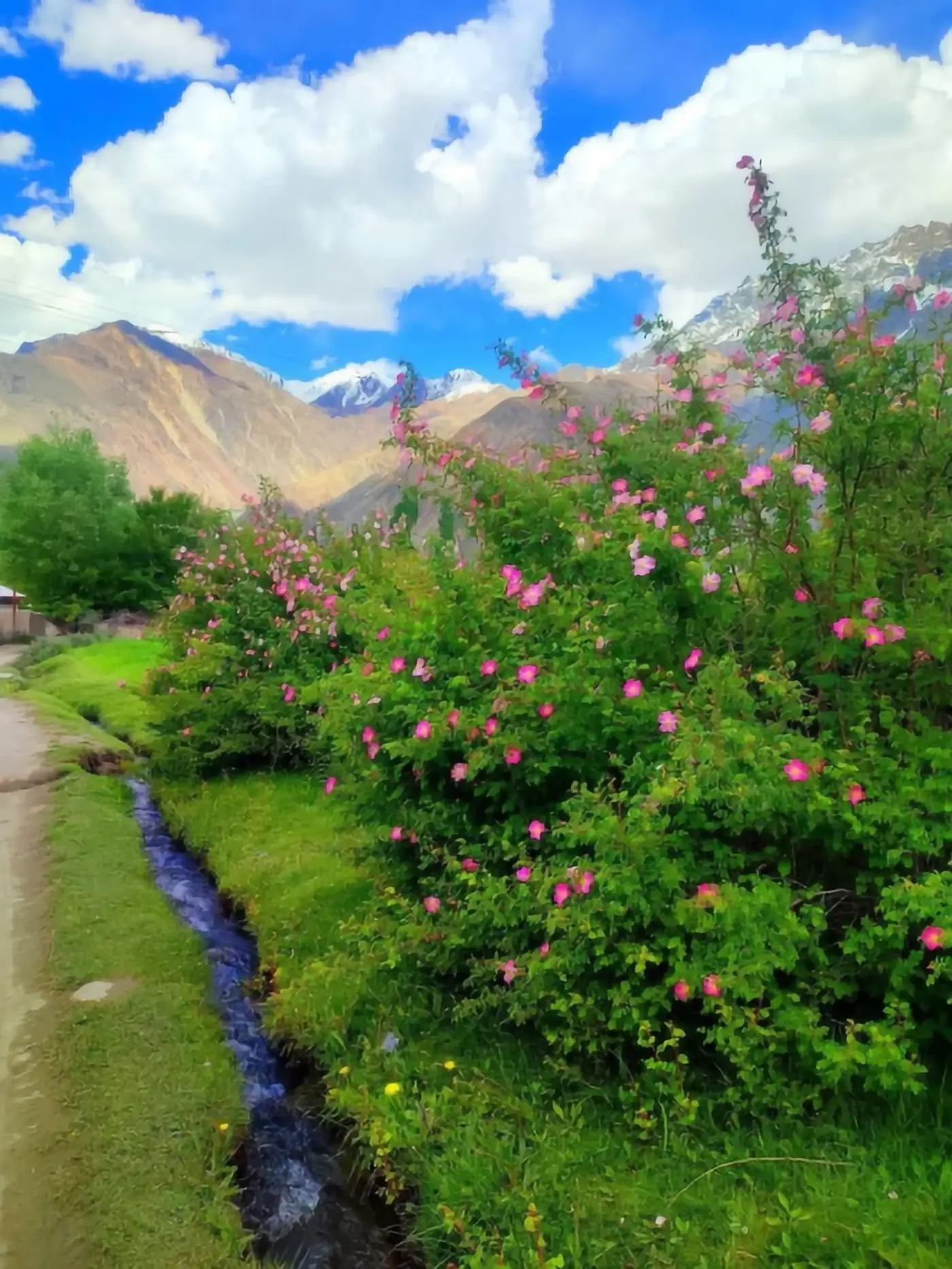
 420px originalenlarged 4x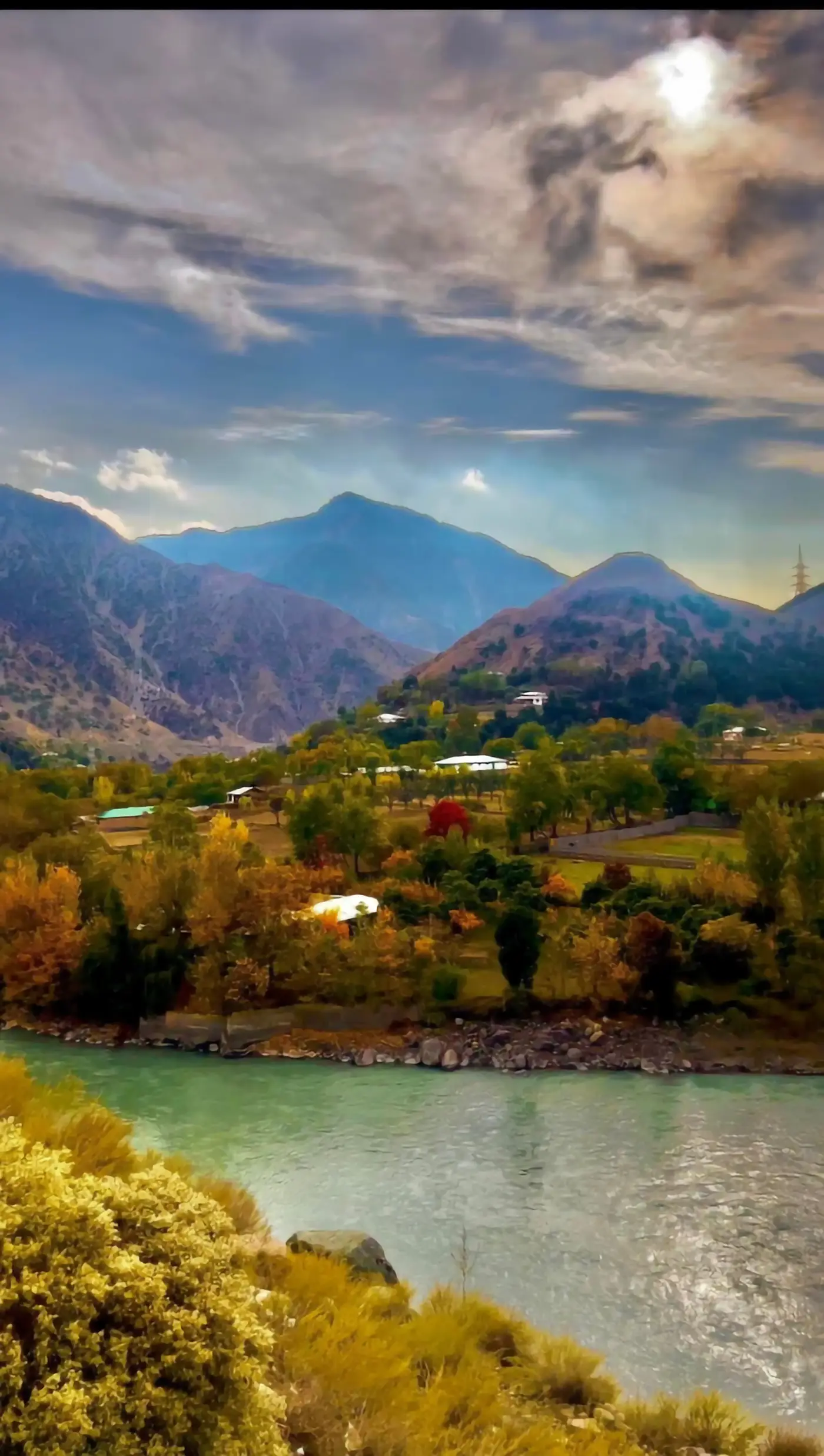
 420px originalenlarged 4x
What Bigjpg actually does to an image
Bigjpg is a super-resolution tool built on deep convolutional neural networks. That phrase matters less than what it implies about how Bigjpg treats your file: Bigjpg is not stretching your image, it is redrawing it. A plain resize in Photoshop takes the pixels you have and spreads them over a larger grid, guessing the gaps by averaging neighbours. Bigjpg never does that. Bigjpg instead runs the small image through a network that has seen millions of small-and-large pairs, and asks it to produce the large version it believes belongs to your small one.
Everything good and everything unnerving about Bigjpg follows from that one difference. The good part is that edges stay edges, which is why Bigjpg output looks clean where a resize looks soft. In Bigjpg's own words, the algorithm was adjusted specifically for lines and colour, which is why it keeps colour blocks clean and leaves almost no glitter or doubling along a contour. The unnerving part is that the extra detail Bigjpg adds is a prediction, not a recovery. Nothing in your original file said what the individual hairs looked like. The network decided.
That is the frame worth carrying through this whole page, and through any tool like Bigjpg: you are not asking software to reveal detail, you are asking a model to commit to a plausible one.
Where Bigjpg is unusually good, by its own account
Bigjpg is direct about its best case, and the Bigjpg claim holds up when you look at how the network was tuned. Three things fall out of it.
Anime and illustration
Bigjpg says anime images and illustrations come out nearly perfect — colours, details and edges all kept. This is not marketing luck. Line art is made of hard edges and flat fills, which is exactly the structure the Bigjpg network can extend confidently.
Noise and serration
Bigjpg says it reduces noise and jagged stair-stepping while it enlarges, rather than magnifying both. A plain resize does the opposite: every artefact gets four times bigger too.
Photographs, with more caution
Regular photos are supported by Bigjpg, and Bigjpg says so plainly rather than overpromising. Photos carry fine stochastic texture — skin, fabric, foliage — and that is where any enlarger has the most room to invent.
The practical read: if you arrived at Bigjpg holding a drawing, a logo, a screenshot or a piece of pixel art, you are in the strongest Bigjpg territory there is. If you arrived holding a photograph of a person, the result will be sharp, and you should look at it twice before you print it.
Sponsored
The limits Bigjpg publishes, and why they shape your workflow
Free accounts on Bigjpg cap uploads at 3000x3000 pixels and 5MB. Paid Bigjpg accounts go to 50MB. There is a Bigjpg API, available after you log in. Uploaded images are deleted automatically within 24 hours on free accounts and 72 hours on premium ones, and result links are encrypted so nobody can pull your image without the link.
One limit is easy to miss and costs people real work: if you are not logged in, you have to leave the browser tab open until the job finishes, or the enlarged image is lost. Logged-in Bigjpg users get offline processing and a history page. The default server is in Mainland China, with a US server selectable in settings after login — which explains most complaints about slow downloads.
None of that is unusual for a hosted tool. It does mean the honest question is not is Bigjpg good but is this specific image worth the round trip to Bigjpg. Which is answerable in ten seconds, free, right below.
Run a Bigjpg-style enlargement free, right here
The upscaler below runs open super-resolution models in your browser — free, no account, no card, no install. Drop in one image, pick an engine, and compare the result against your original.
It answers the only question that actually blocks people: does AI enlargement do the thing I need on this file? A logo and a portrait behave completely differently in Bigjpg and in every other enlarger, and thirty seconds on your own image tells you more than any comparison table.
How to judge what Bigjpg gave you back
Enlarged images are graded wrong most of the time. People zoom to 100%, see sharpness, and approve it. Sharpness is the easy part — Bigjpg delivers it, and so does every other upscaler. Here is what to check instead, on Bigjpg output or on anything else.
- STEP 1
Look at text and logos first
Invented letterforms are the fastest tell. If a sign in the background now reads as convincing nonsense, Bigjpg or whichever model you used is filling confidently in places it should not.
- STEP 2
Check faces at their real display size
Not zoomed in. A face that looks plastic at 400% may be perfect in the size it will actually be seen at, and the reverse also happens.
- STEP 3
Look for repeated texture
Networks under pressure tile the same fabric weave or foliage pattern. Once you see it, you cannot unsee it.
- STEP 4
Compare against a plain resize
Do the boring bicubic version too. If Bigjpg or any AI enlargement is not clearly better on this particular file, it is not worth the round trip — some images genuinely do not benefit.
That last one is the check nobody runs, and it is the one that saves the most time.
What to do when one free Bigjpg enlargement is not enough
Free tiers are shaped to show you the interface, not to finish a job. That applies to the Bigjpg 5MB free cap, and it applies to the browser tool on this page, which runs on a shared GPU pool with a per-visitor daily allowance.
So the sensible order is: test free first, on the actual file, then decide where to spend. If the test says AI enlargement solves your problem, the paid options split into three shapes worth knowing.
Stay with a dedicated enlarger
Paying Bigjpg, or a tool shaped like Bigjpg, buys bigger uploads and a faster queue for the same job you just tested.
Move to a hosted generator with model choice
You pick a restoration model per image instead of accepting one fixed network, which matters when a portrait and a screenshot need different handling.
Run a model locally
Free after setup, with no upload ceiling to work around, and it costs you an afternoon and a GPU.
Most people want the second one, and the honest reason is that a single fixed network is a good default and a bad ceiling.
Common questions about Bigjpg and AI enlargement
- Is Bigjpg free?
- Bigjpg has a free tier with a 3000x3000 pixel and 5MB upload limit, and paid accounts that raise it to 50MB. The upscaler on this page is free with no account at all.
- Does Bigjpg work on photos or only anime?
- Both, but Bigjpg is tuned for lines and flat colour, so anime and illustration are where it is strongest. Bigjpg says so itself.
- Does an enlarged image really keep its quality?
- A Bigjpg enlargement keeps its apparent quality. The detail added is predicted by a model, not recovered from the file, so it can look better than the original while being less faithful to it.
- Does Bigjpg have an API?
- Yes, available after logging in to your account.
- What happens to images I upload to Bigjpg?
- Bigjpg deletes them automatically within 24 hours on free accounts and 72 hours on premium accounts, and result links are encrypted.
- How large can I enlarge before it stops helping?
- In Bigjpg and in the tool on this page alike, past roughly 4x, most of what you gain is confident invention rather than useful detail. Enlarge to the size you will actually display, not to the biggest number available.
Enlarge the file before you pay for anything
Run it free in the browser — no account, no card. Then send the two or three images that actually matter to a dedicated GPU.