Bigjpg AI Image Enlarger - How the AI Image Enlarger Works, Free Online
An AI image enlarger does not stretch your picture, it redraws it. That single difference explains every good and every strange result you have ever got out of one — including out of Bigjpg.
tiled diffusion · rebuilds texture
Running Tile Upscaler in your browser. Want a bigger upload and a model you choose per image? →
Independent site — not affiliated with Bigjpg or bigjpg.com. Or enlarge it on a dedicated GPU →
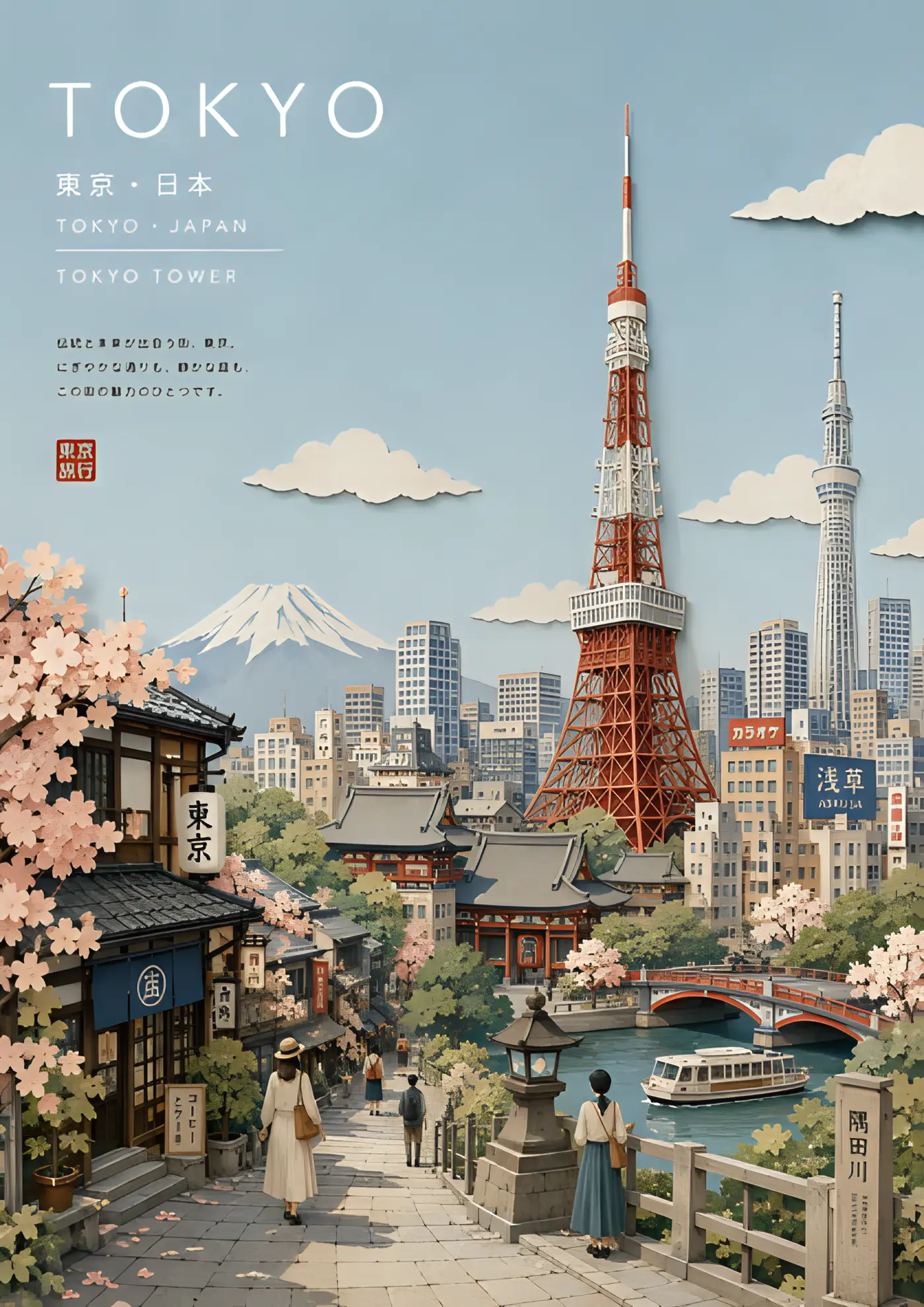
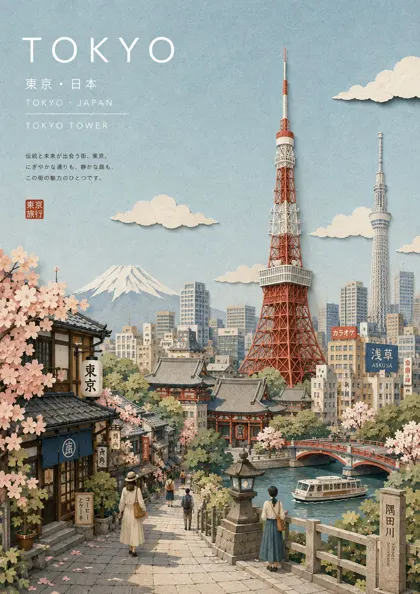
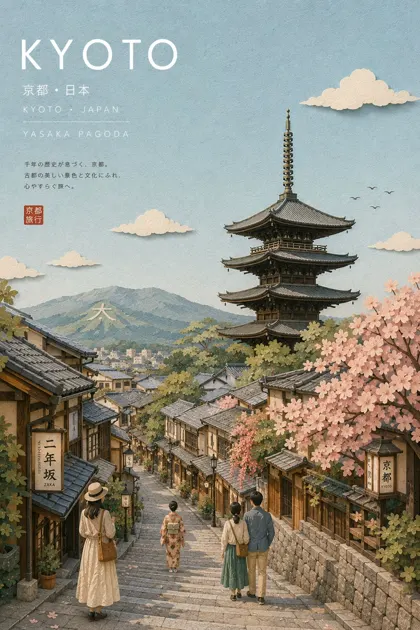
Drag the divider: same file, 420 pixels wide, enlarged 4x
Every one of these started as a 420-pixel-wide file and came back through an engine on this page. Look at the small type and the leaves — that is where the difference lives.
 420px originalenlarged 4x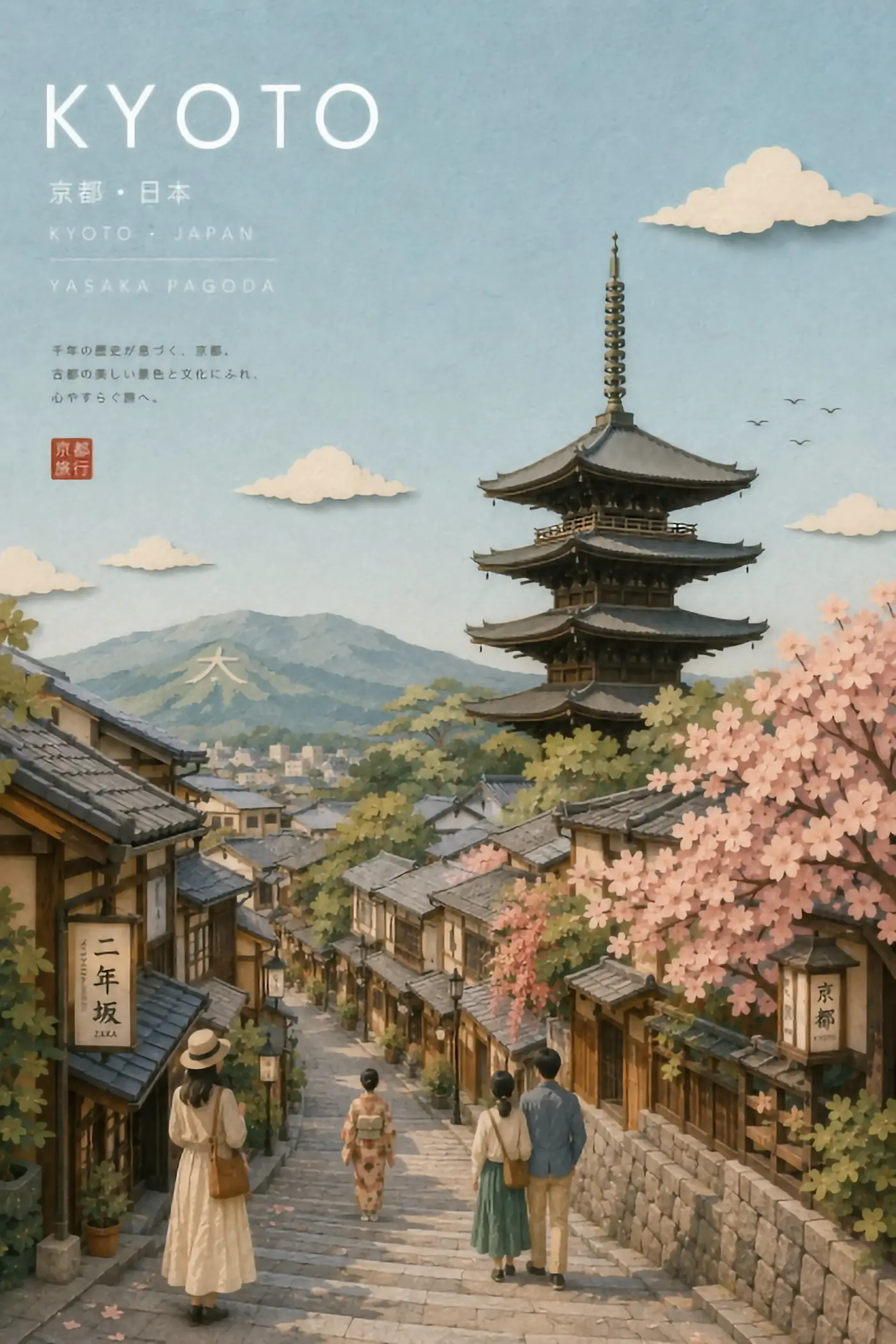
 420px originalenlarged 4x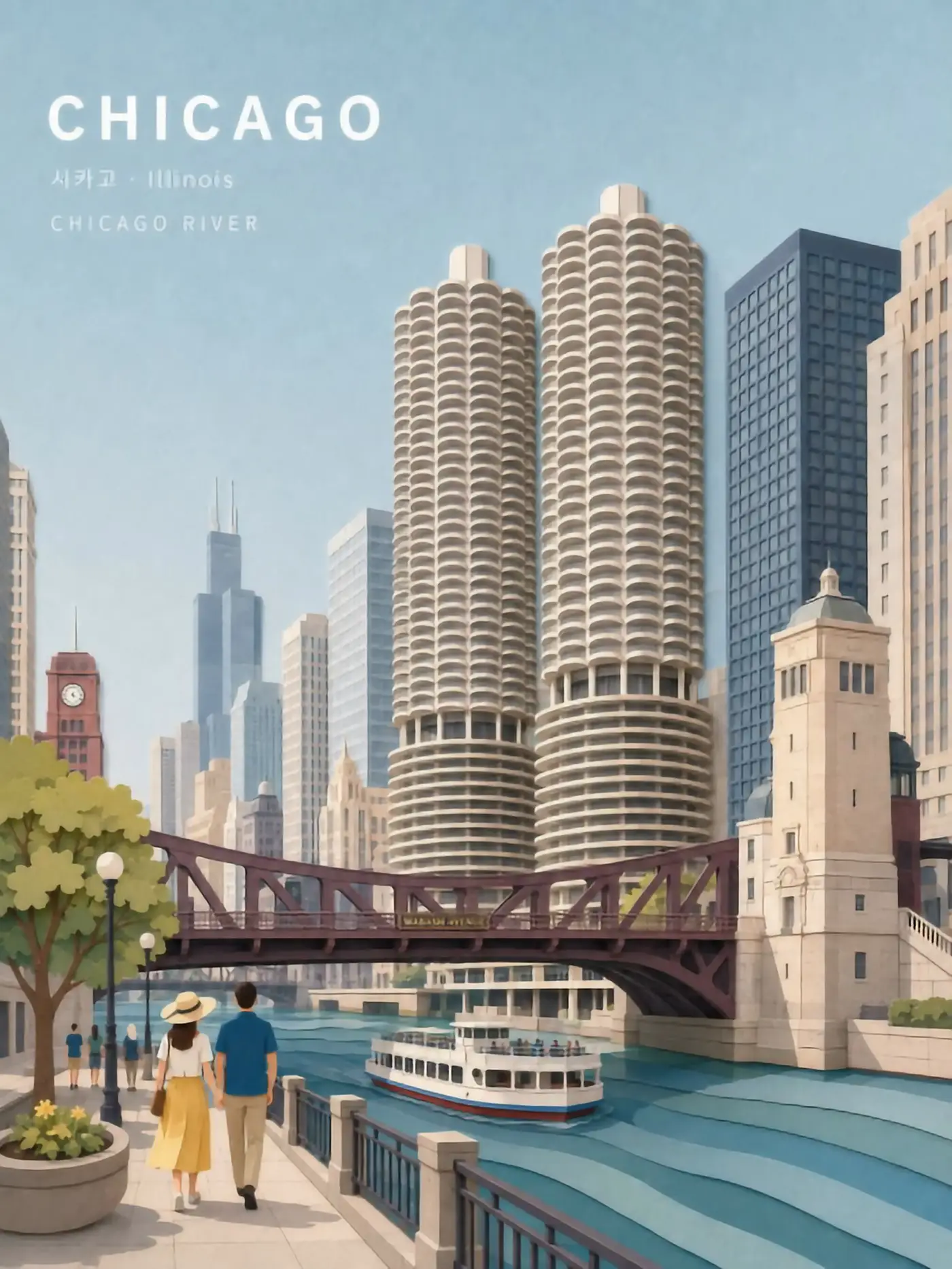
 420px originalenlarged 4x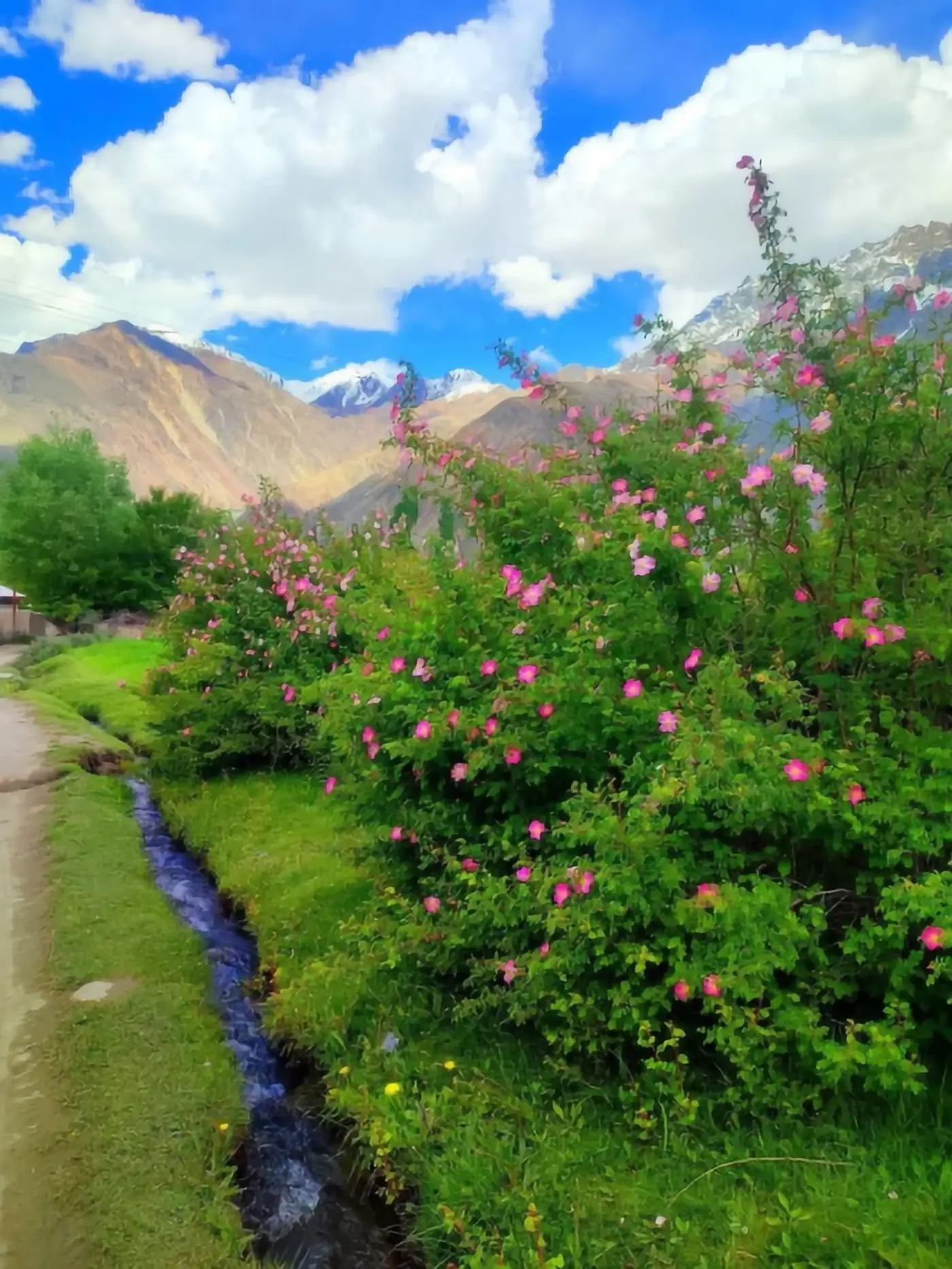
 420px originalenlarged 4x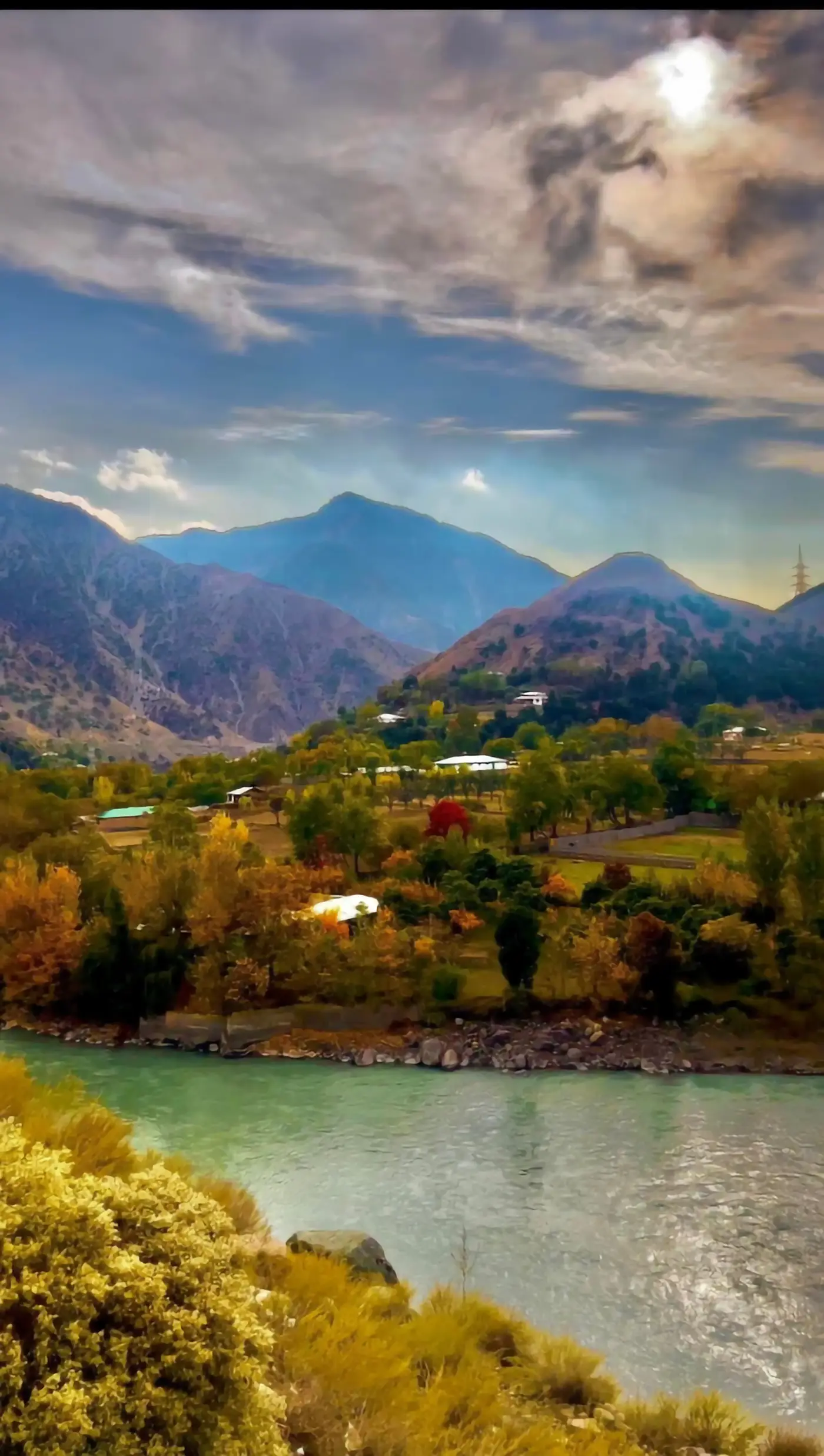
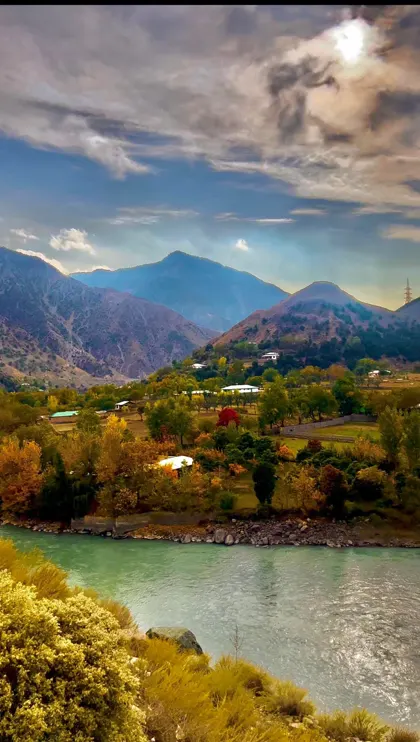 420px originalenlarged 4x
What an AI image enlarger does that a resize cannot
Drag a corner in any editor and you are running interpolation. The resize built into your operating system looks at the pixels you already have and averages between them. Four times bigger means every original pixel now covers sixteen, and the software has to guess fifteen of them from the neighbours. It guesses by blending, which is why the result is bigger and softer at the same time.
An AI image enlarger asks a different question. Instead of what colour sits between these two pixels, it asks what full-size image would have produced this small one. A neural network is trained on millions of pairs — a sharp original and its shrunken copy — until it learned the mapping backwards. Bigjpg describes exactly this: deep convolutional neural networks, tuned for lines and colour.
The consequence is worth stating plainly, because most marketing in this category avoids it. The detail you get back was not hiding in your file. An AI image enlarger produces a plausible large image, not the true one. When the plausible version matches reality, the result is remarkable. When it does not, you get a confident, sharp, wrong picture — and the two look identical until you check.
What the image enlarger is actually good at
Not all images are equally easy for an image enlarger, and the difference is structural rather than aesthetic.
Hard edges win
Line art, logos, screenshots, pixel art, UI mockups. A line has one correct continuation, so the model has almost no freedom to invent wrongly. This is why Bigjpg singles out anime and illustration as its best case.
Flat colour wins
Large uniform regions scale perfectly. There is nothing to fabricate.
Repeating micro-texture is risky
Skin pores, fabric weave, grass, gravel. The network knows what texture belongs there and will supply it, but it is supplying a generic version, not yours.
Text is the danger zone
Small lettering below the legibility threshold gets reconstructed into letterforms that look right and read wrong. Any upscaler will do this. Always check signage and captions.
Compression artefacts get promoted
A heavily saved JPEG carries blocky ringing, and a naive network treats those blocks as real structure and enlarges them into features.
Try an AI image enlarger free, right here
The tool below is an AI image enlarger running open super-resolution models in your browser — free, no account, no card, no install. Upload one file, pick an engine, compare the two.
Thirty seconds on your own image beats any comparison table, because the answer genuinely depends on the file. A logo and a portrait come out of the same run with completely different levels of trustworthiness.
Sponsored
How to pick a scale factor
The scale control is where most sessions go wrong. People reach for the maximum because it is there.
The rule that holds up: enlarge to the size you will actually display, then stop. Every step past that is invention at a scale nobody will ever see. Going 2x on a small avatar to make it crisp on a retina screen is nearly free of risk. Going 8x on the same file to make a poster is asking a model to author roughly 98% of the pixels in that poster.
Past roughly 4x, an image enlarger has more freedom than fidelity. If you need a genuine poster, the honest answer is often to re-shoot, re-export from the original, or redraw the vector — not to push the scale factor harder.
How to check what came back
An enlarged result is judged badly by default: people zoom in, see crisp edges, and approve. Sharpness is the part every upscaler delivers. Here is the check that finds real errors.
- STEP 1
Read the small text
If words that were unreadable are now readable, be suspicious, not impressed.
- STEP 2
View at final size
Judge at the size the image will be seen, not at 400%. Both false alarms and real problems live at the wrong zoom level.
- STEP 3
Hunt repeated patterns
A texture that tiles is the clearest sign the model ran out of information.
- STEP 4
Do the boring comparison
Run a plain bicubic resize as well. If the AI image enlarger is not obviously better on this file, it did not earn the round trip.
Free image enlarger tiers and where they stop
Every hosted enlarger runs the same shape: a free tier that proves the interface, then a wall. Bigjpg caps free uploads at 3000x3000 pixels and 5MB, lifts that to 50MB on paid accounts, and requires you to keep the tab open unless you are logged in. The image enlarger on this page runs on a shared GPU pool with a per-visitor daily allowance, which resets on its own.
Neither limit is a reason to pick a tool. Test on the actual file first, then buy the thing that solved it. When one free run is not enough, the paths split three ways.
A dedicated enlarger subscription
More upload headroom and a faster queue for the same fixed network.
A hosted generator with model choice
You choose a restoration model per image instead of accepting one, which is what you want when a portrait and a screenshot need different handling.
A local install
Unlimited and free after setup, at the cost of an afternoon and a GPU.
Where the Bigjpg image enlarger sits among the options
Bigjpg is a single-purpose tool with one tuned network behind it, and that shape has a real advantage: there are almost no decisions to make. You upload, you pick a factor, you get a result that is consistent with the last one. For line art and illustration that consistency is most of the value.
The same shape is also the ceiling. One network means one opinion about what texture belongs on a face, and no way to ask for a second one. When a portrait comes back plastic, there is no lever to pull. Tools that let you choose a restoration model per image exist for exactly that case, and they cost more because the choice is the product.
Neither answer is right in general. Run the free image enlarger above on the file that actually matters to you, look at it at final size, and let the file decide.
Questions people ask about the AI image enlarger
- Is an AI image enlarger better than Photoshop?
- For enlargement, usually yes — the model adds structure where interpolation only blurs. For fidelity to what was really there, no tool beats the original file.
- Can it recover a blurry photo?
- It can produce a sharp image. Whether that sharp image is true to the blurred subject is a separate question, and for faces the answer is often no.
- How much can I enlarge safely?
- 2x is nearly always safe, 4x is usually fine, and beyond that the model is authoring more than it is restoring.
- Does the file format matter?
- Yes. A clean PNG enlarges better than a heavily compressed JPEG, because the network cannot tell your compression blocks from your content.
- Is the free image enlarger on this page limited?
- It runs on shared GPUs with a daily per-visitor allowance and no account, which is enough to test a handful of images.
- Does Bigjpg have an API?
- Yes, available after logging in to a Bigjpg account.
Enlarge the file before you pay for anything
Run it free in the browser — no account, no card. Then send the two or three images that actually matter to a dedicated GPU.