Enlarge an Image Without Losing Quality - Free Online, No Sign-Up
You cannot enlarge an image and gain information. You can, however, choose what the enlargement gives up — and that choice is the whole game. Free tool below.
tiled diffusion · rebuilds texture
Running Tile Upscaler in your browser. Want a bigger upload and a model you choose per image? →
Independent site — not affiliated with Bigjpg or bigjpg.com. Or enlarge it on a dedicated GPU →
Drag the divider: same file, 420 pixels wide, enlarged 4x
Every one of these started as a 420-pixel-wide file and came back through an engine on this page. Look at the small type and the leaves — that is where the difference lives.
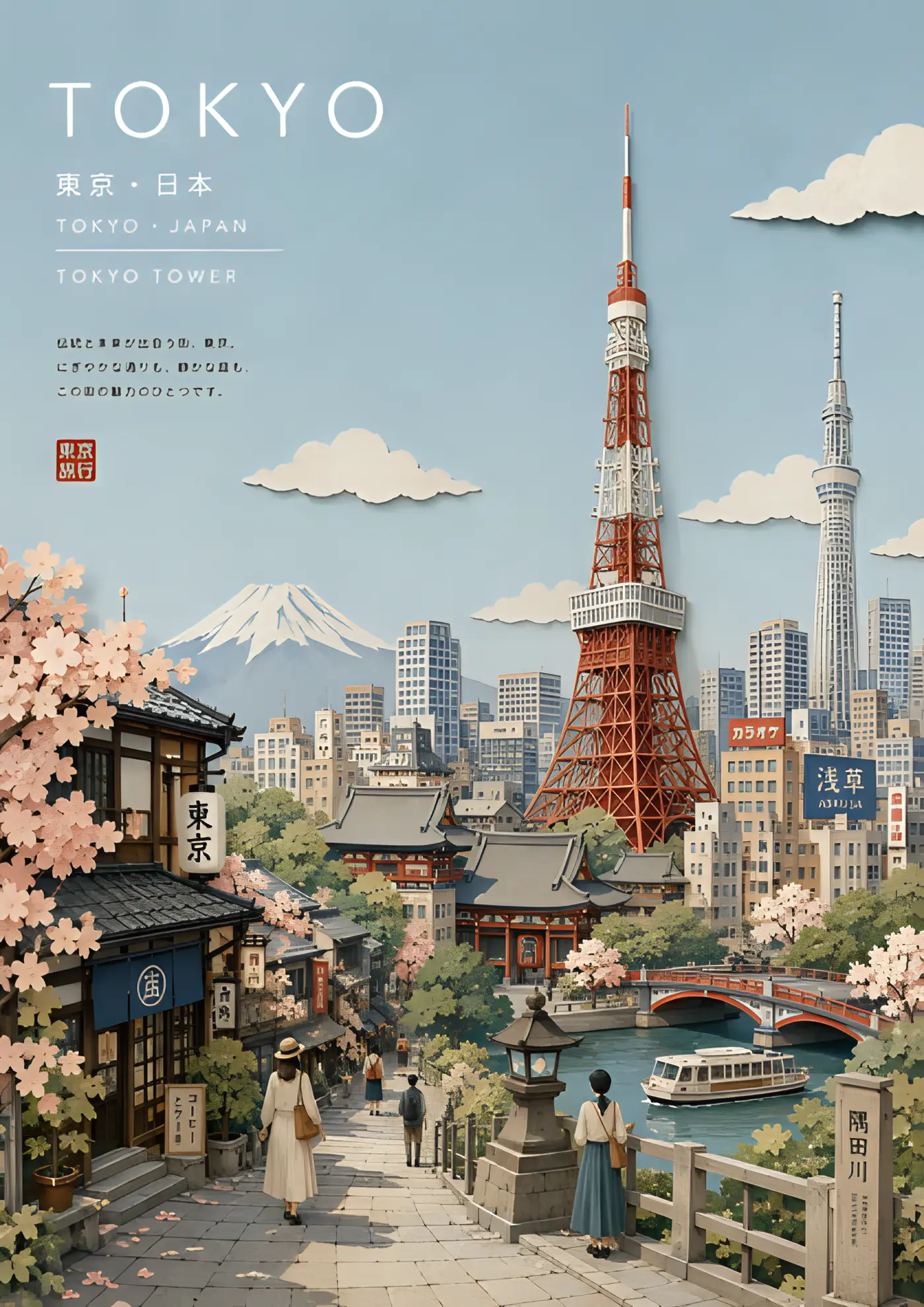
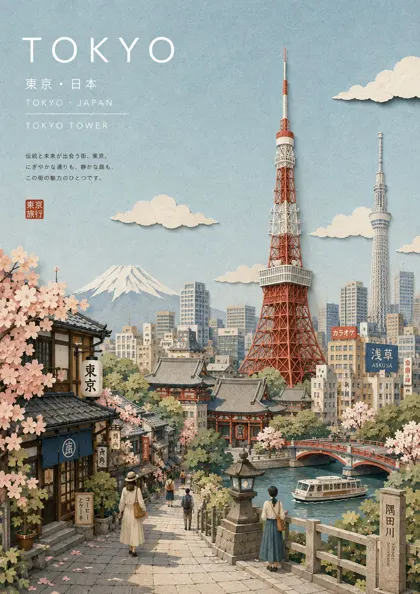 420px originalenlarged 4x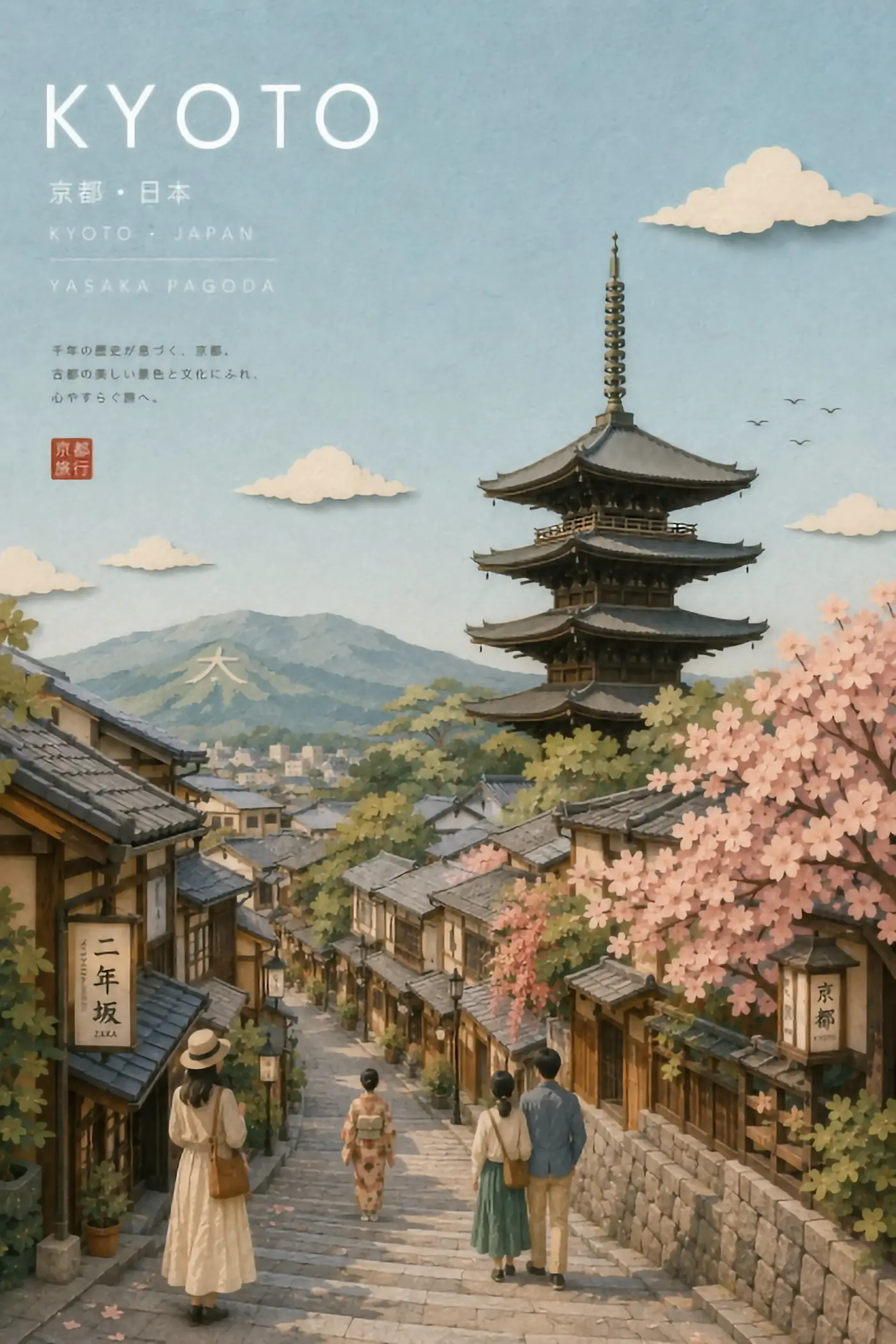
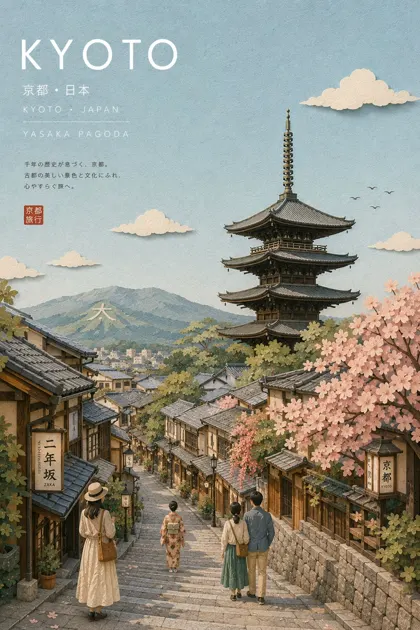 420px originalenlarged 4x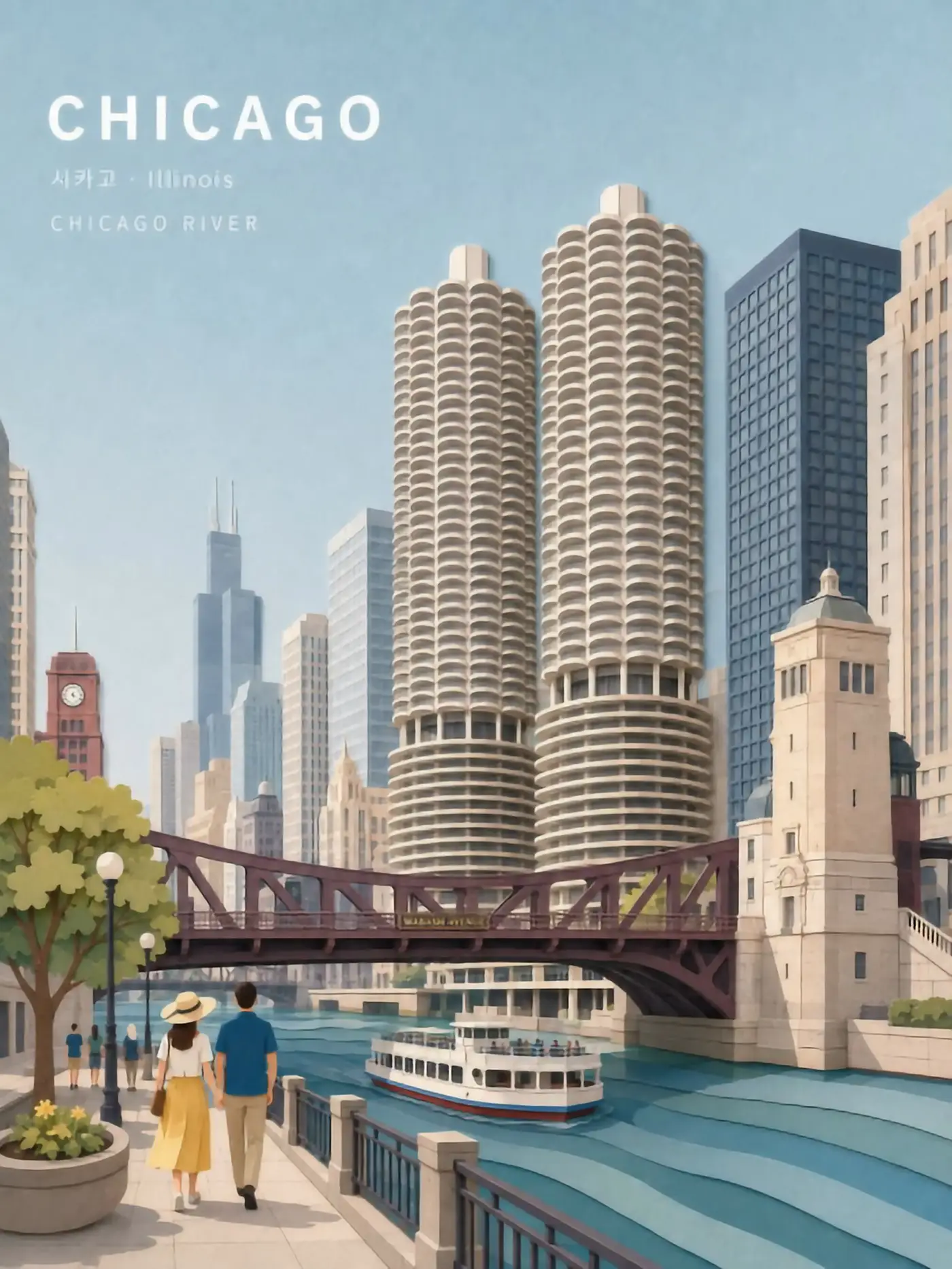
 420px originalenlarged 4x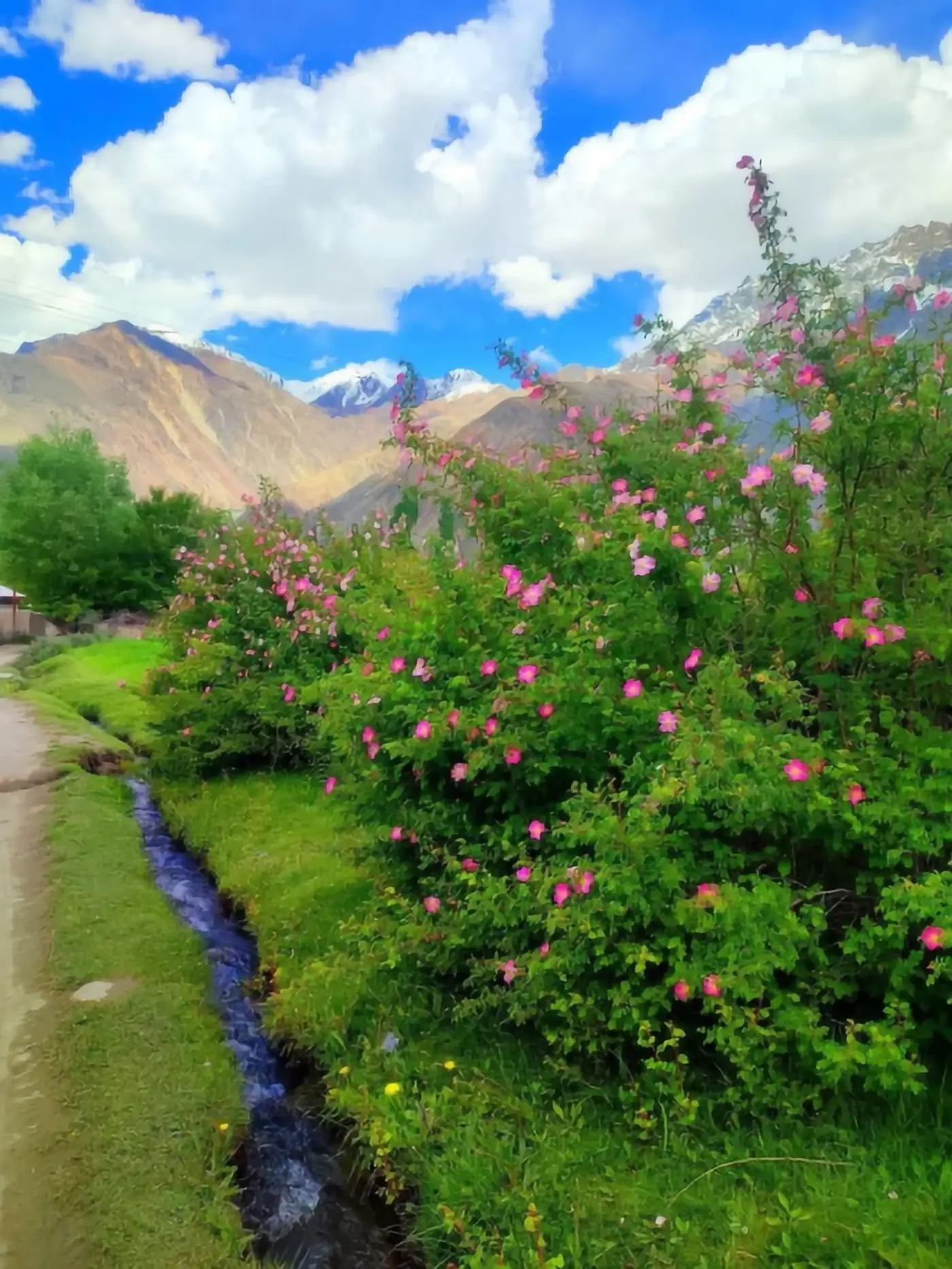
 420px originalenlarged 4x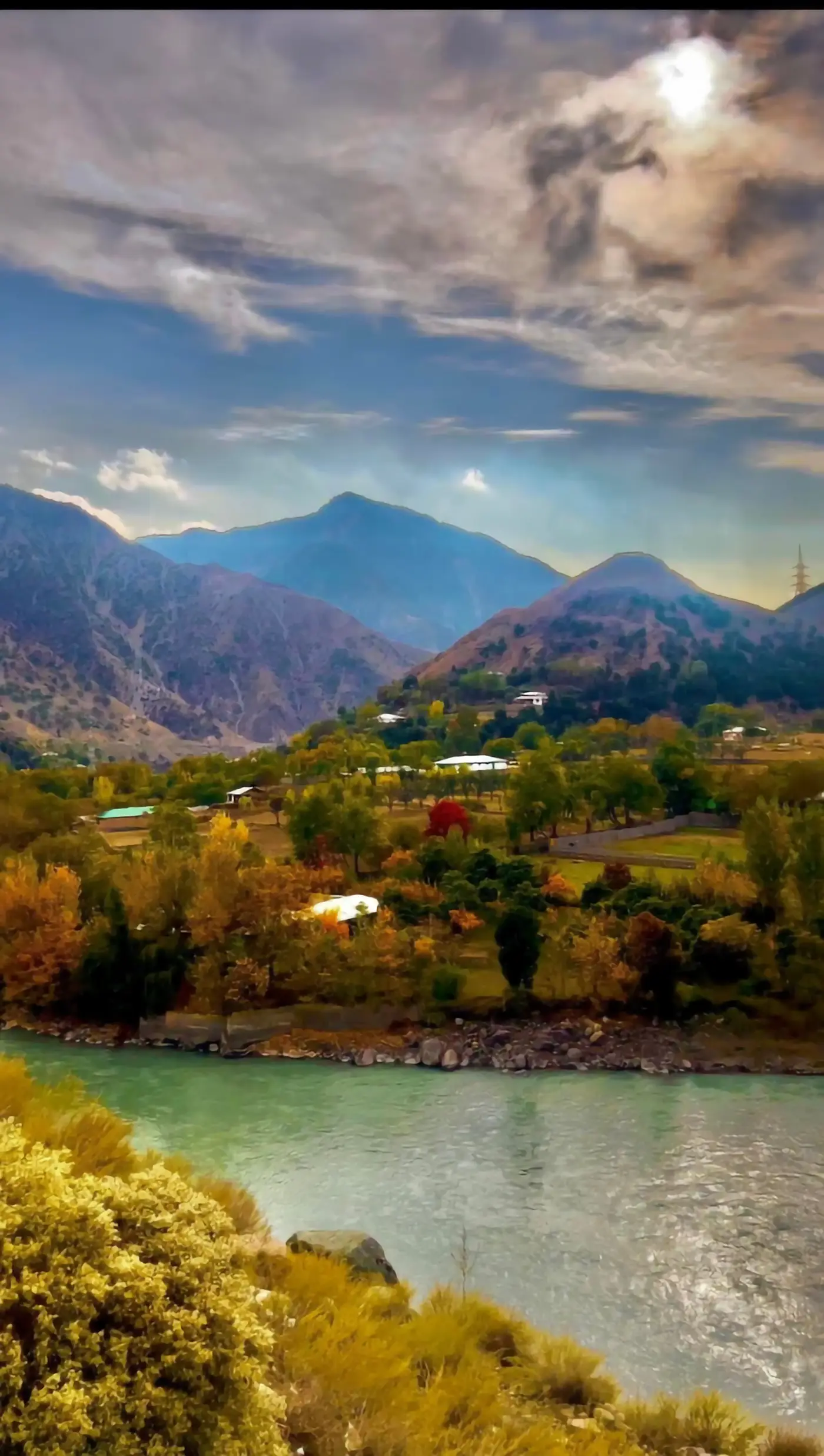
 420px originalenlarged 4x
What it means to enlarge an image without losing quality
The phrase promises something physics does not allow. A 500-pixel file contains 500 pixels of information. Enlarge it to 2000 and something has to fill the other 93%, because nothing in the file describes it.
So every method used to enlarge an image is really a decision about what to lose. There are four, and they lose four different things.
Interpolation loses sharpness
Bicubic and its relatives enlarge by averaging between known pixels. Nothing is invented, so nothing is wrong — the picture is simply soft. Perfectly honest, rarely satisfying.
Sharpening loses naturalness
Enlarge first, then sharpen, and edges come back with halos and crunch. The information is not restored; contrast is exaggerated to imply it.
Neural enlargement loses fidelity
A trained network enlarges by predicting the detail that probably belongs there. This is the only method that produces a genuinely crisp result, and the cost is that some of what you see was authored rather than recorded.
Vector redraw loses nothing — where it applies
If the artwork is a logo or a diagram, tracing it into a vector lets you enlarge to any size with no loss at all, however far you enlarge it. It only works when the original is geometric.
Once you see the four options as four different losses, choosing is easy: pick the loss your image can afford.
Sponsored
Why AI tools that enlarge images earned the lossless reputation
Tools in this category all make roughly the same promise, and Bigjpg is the best-known example — it describes itself as lossless enlargement using deep convolutional neural networks, tuned so that lines and colour survive.
The reputation is earned in a specific sense. Enlarge line art with a tuned network, or enlarge an illustration the same way, and the result really does look like it was drawn at that size: outlines stay crisp, flat colour stays flat, and the jagged stair-stepping you get when you enlarge with a plain resize is gone. Bigjpg says anime and illustration come out nearly perfect and photos are supported, and that ordering tells you exactly where the promise holds.
It holds because line art is predictable. A line has one plausible continuation, so the network's guess is almost always right, and a guess that is always right is indistinguishable from information. Photographic texture is not predictable in the same way, which is why the same promise feels thinner when you enlarge a portrait.
Enlarge an image free, right here — no sign-up
The tool below runs open super-resolution models in your browser — free, no account, no card, no install. Upload one file and compare the enlargement against your original at the size you will actually use.
That comparison is the only reliable test. Whether you can enlarge this image without visible loss depends on the image itself, not on the tool's marketing. Enlarge it once and you will know.
How to enlarge with the least loss
A short procedure that gets more out of any tool you enlarge with.
- STEP 1
Start from the largest original you can find
The version in a chat thread is often a quarter of what the sender had. One message can save you a 4x enlargement.
- STEP 2
Enlarge before you crop, not after
Crop first and you throw away real pixels, then ask a model to replace them; enlarge the full frame and crop afterwards for the same number of clicks.
- STEP 3
Use PNG for line art, and the highest-quality source for photos
A network cannot tell compression blocks from content, so it will faithfully enlarge your JPEG artefacts.
- STEP 4
Pick the smallest factor that reaches your target
Enlarge 2x and the loss is nearly invisible on most files. Enlarge 4x and you are at the working ceiling. Enlarge further and you are commissioning a picture rather than enlarging one.
- STEP 5
Judge at final display size
A result that looks synthetic at 400% is often flawless at the size it will be seen.
Where the loss shows up first when you enlarge
Once you enlarge an image, four things tell you honestly whether quality survived. Check them in this order.
Small text
Letterforms that became readable were reconstructed, not recovered.
Faces
Skin that lost its pores, or gained perfectly even ones, is the network's texture rather than the subject's.
Repeating texture
Fabric or foliage that tiles means the model ran out of information.
Edges against sky
Halos and dark fringes are the signature of sharpening rather than reconstruction.
None of these mean the file is unusable. They tell you how far you have travelled from the photograph, so you can enlarge up to that line and stop before the picture stops being yours.
When one free run to enlarge an image is not enough
Free tiers are built to prove the interface. Bigjpg caps free uploads at 3000x3000 pixels and 5MB, raises it to 50MB on paid accounts, and needs the browser tab open unless you are logged in. The tool on this page runs on shared GPUs with a per-visitor daily allowance that resets on its own.
For a few images that is the whole answer. For volume, the options take three shapes.
A dedicated upscaler subscription
Bigger uploads and a faster queue with one fixed network making the calls.
A hosted generator with model choice
A restoration model chosen per image, which is what you want when the batch mixes drawings with photographs.
A local install
Unlimited after setup, at the price of an afternoon and a GPU.
What to do when you cannot enlarge your way out
Some files do not survive any amount of enlargement, and recognising them early saves an hour.
A screenshot of a screenshot, a photo re-shared through three chat apps, a thumbnail scraped from a search result — these have been compressed repeatedly, and what you would enlarge is mostly the record of that compression. The fix is not a better upscaler, it is one message asking for the original.
The same is true of anything geometric. Logos, icons, charts and type should be rebuilt rather than enlarged, because a vector version is infinitely scalable and usually takes minutes to recreate. Reach for an upscaler when the content is photographic or painted; reach for the source file when it is drawn.
Questions about enlarging without quality loss
- Can you really enlarge an image without losing quality?
- You can enlarge one without it looking worse, which is what people mean when they ask. Information is never added back, it is predicted.
- What is the safest way to enlarge a logo?
- Enlarge it as a vector — trace it, or ask whoever made it for the vector. That is the only genuinely lossless route.
- How far can I enlarge a photo?
- Enlarge 2x reliably, 4x usually, and beyond that the result is more authored than restored.
- Does saving as PNG prevent quality loss?
- Saving as PNG after you enlarge avoids adding new compression loss. It cannot undo loss already baked into a JPEG.
- Is the tool on this page free?
- Yes, no account and no card, on shared GPUs with a daily per-visitor allowance.
- Which files enlarge best?
- Line art, logos, screenshots and illustrations enlarge best — anything made of hard edges and flat colour.
Enlarge the file before you pay for anything
Run it free in the browser — no account, no card. Then send the two or three images that actually matter to a dedicated GPU.